How to Add Holidays to a Project Schedule (and a Shutdown)
To add holidays to a project schedule, put them on the working calendar, not an events calendar. Steps for MS Project and Onplana, plus a shutdown example.
A team imports a plan, adds "Christmas break" to a shared calendar, and watches every date stay exactly where it was. The break moved nothing because the working calendar decides which days count toward a duration, and an events calendar is not the working calendar. To add holidays to a project schedule, record each one as a non-working exception on the calendar the schedule runs on, then let the dates recalculate.
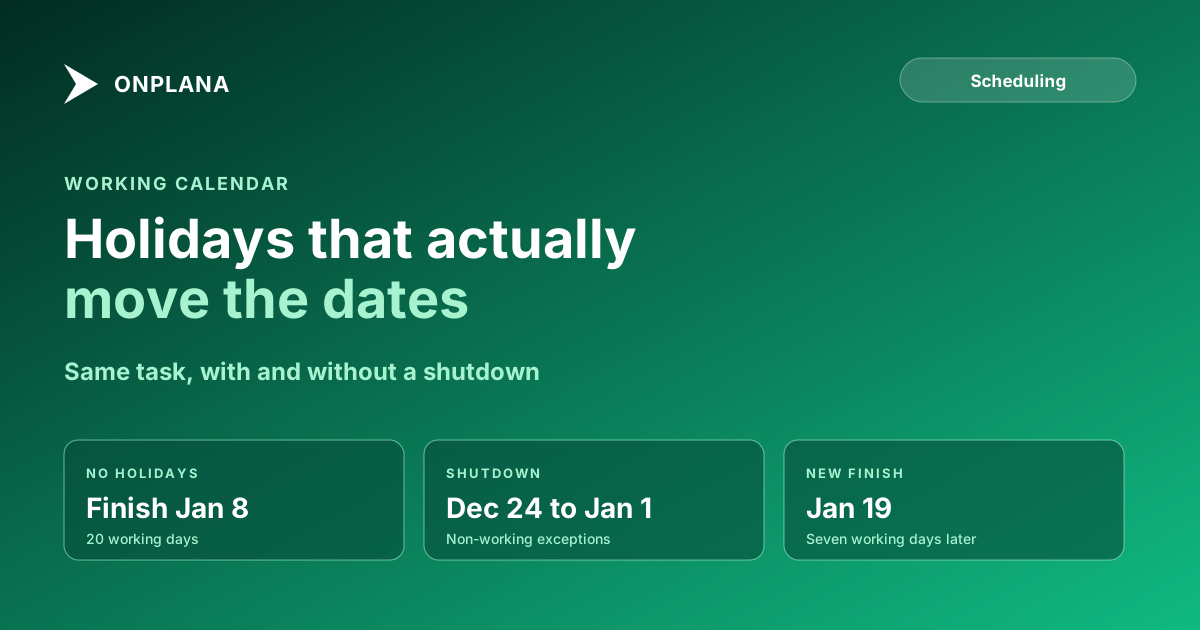
The short version: Holidays and shutdowns belong on the working calendar as non-working exceptions, one per day or per range. In a 20-working-day task starting Monday, December 14, 2026, a shutdown from December 24 to January 1 moves the finish from January 8 to January 19, 2027, seven working days later. Dates you type by hand do not move; calculated dates do.
Set up a working calendar on the free plan Working calendars, holiday presets and exceptions are on every Onplana plan, Free included. Add your holidays once and every project that uses the calendar respects them. Set up a working calendar on the free plan
Why does adding a holiday to a calendar not move my dates?
A schedule computes a finish date by counting working days, so only the working calendar can change it. A five-day task needs a calendar to say which five days those are, and a holiday that lives anywhere else is invisible to that count. The same applies to a plan you import: the dates you see were calculated against whatever calendar came with the file, or against your organization's default. Project working time calendars covers the four layers (base, project, task, resource) and which one wins.
How do you add holidays in MS Project?
Add each holiday as an exception to the project's working calendar. On its Work with calendars in Project page (read November 20, 2026), Microsoft describes company holidays as exceptions in a base calendar. In practice:
- Open Change Working Time and select the calendar the project uses.
- On the Exceptions tab, type a name for the holiday.
- Set the Start and Finish dates. A range such as a shutdown is one entry.
- Leave the day as nonworking and confirm. Project recalculates the dates that depend on the calendar.
A holiday that applies to one person only belongs on that resource's own calendar, not the base calendar.
How do you add holidays and exceptions in Onplana?
Create or open a working calendar in Organization Settings, then add the holidays to it. The Onplana docs (read November 20, 2026) give the path:
- Open Organization Settings, then the Configuration tab, then Calendars.
- Select New Calendar, or start from Standard Mon–Fri, Mon–Sat or 7-Day Week. Set the working days and hours per day.
- Expand the calendar and use the holiday import: pick a country and year. Presets cover 12 countries, including the US, UK, Germany and Japan, and dates already on the calendar are skipped, so re-importing is safe.
- For anything the preset does not carry, choose Add Exception. Each exception has a date, a working or non-working flag, an optional name, and optional reduced hours for a half day.
- In Edit Project, set the Working Calendar field. A project with none uses the organization default.
Working calendars and holidays are on every plan. The Gantt with critical path consults the calendar whenever it calculates the schedule, which is why the finish date moves with it.
How do you schedule a shutdown, not just a holiday?
Enter every day of the shutdown as a non-working exception. In MS Project one entry spans the range. In Onplana an exception is a single date, so a two-week closure is entered day by day, as of November 20, 2026.
The diagram below shows the worked example. A 20-working-day task starts on Monday, December 14, 2026. Without a calendar change it finishes on January 8, 2027. With the seven weekdays from December 24 to January 1 marked non-working, those days stop counting and the finish becomes January 19.
What should you check after adding holidays?
Check that the dates moved and that only the right ones did. Run through this list:
- Pick one task and count. Count its working days by hand across the break and match the finish.
- Confirm the calendar is the one the project uses. A holiday on a calendar nobody assigned changes nothing.
- Look for hand-typed dates. Onplana's docs say they stay where you put them, so a task with a typed start will sit through the shutdown.
- Re-read the critical path. A shutdown can change which chain is longest, so confirm the path still ends where you expect.
If you imported the plan, keeping its dependencies on import lists what to compare, and the calendar is the first thing to check.
Set up a working calendar on the free plan Add your holidays and shutdown once, assign the calendar to the project, and the finish date follows. Free, with working calendars on every plan. Set up a working calendar on the free plan
Microsoft Project™ is a trademark of Microsoft Corporation. Onplana is not affiliated with Microsoft.
Frequently asked questions
Why did my Christmas break not move any dates in the schedule?
Because a holiday on an events or team calendar is a note, not a working-time rule. Task dates move only when the day is a non-working exception on the working calendar the schedule uses.
How do I add holidays in MS Project?
Add each holiday as an exception to the project's working calendar, in the Change Working Time dialog, and give it a start and a finish date. Microsoft describes company holidays as exceptions in a base calendar on its Work with calendars in Project page.
How do I add holidays in Onplana?
Open Organization Settings, then Configuration, then Calendars, expand a calendar and import a country and year of holidays or use Add Exception. Then make sure the project's Working Calendar field points at that calendar.
How do I add a two-week shutdown?
Add one non-working exception for each day of the shutdown. In Onplana an exception is a single date, so a two-week closure is entered day by day; MS Project accepts a start and finish date for a range.
Will tasks I typed dates into move when I add a holiday?
No. Onplana's docs say that dates you typed by hand stay where you put them. Only dates calculated from durations and links use the calendar.
Is the working calendar available on the free plan?
Yes. Working calendars and holidays are on every plan, Free included.
Ready to make the switch?
Start your free Onplana account and import your existing projects in minutes.