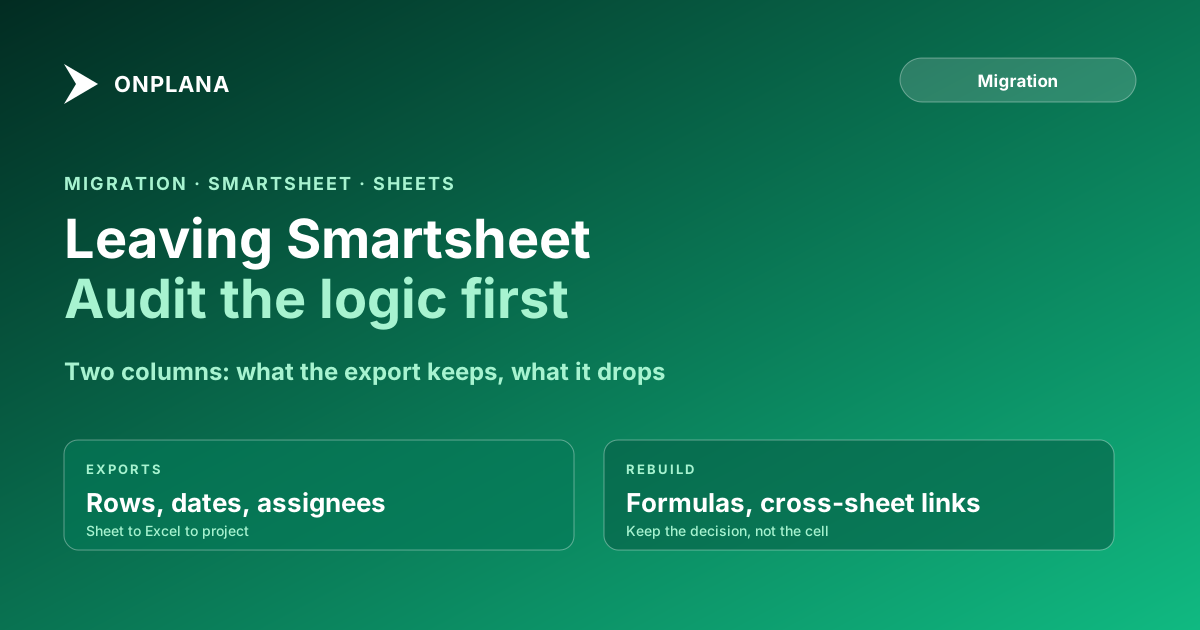
Migrate from Smartsheet: Dependencies, Formulas, Sheets
How to migrate from Smartsheet: export the sheet to Excel, import it as a spreadsheet, and plan for formulas and cross-sheet links, which do not travel.
Smartsheet holds real schedule logic, which makes it one of the more faithful tools to leave. The risk is somewhere else: in the formulas and cross-sheet links that quietly run the rest of the workspace.
To migrate from Smartsheet, export each sheet to Microsoft Excel, then import the file into Onplana as a spreadsheet. Smartsheet's own help states that formulas, including cross-sheet formulas, are not preserved in an Excel export (Smartsheet export help, checked 2026-10-03), so the plan is mostly about what those formulas were doing.
The direct answer: A Smartsheet migration moves the task list and loses the logic around it. Rows, hierarchy, dates and assignees travel in the Excel file, and Onplana's import wizard (Excel or CSV, up to 50 MB) turns them into a project. Formulas and cross-sheet references do not travel, so list what each one decided and rebuild only the ones the team still uses.
What does a Smartsheet export carry?
Sort every sheet feature into "arrives", "needs a decision" or "stays behind" before you export. The left column follows Smartsheet's export help; the right follows Onplana's spreadsheet import.
| Smartsheet item | In the Excel file? | On import | Your action |
|---|---|---|---|
| Task rows and indentation | Yes | Hierarchy is rebuilt from the signals the file carries | Check the tree in the preview |
| Dates and duration | Yes | Map to start, finish and duration columns | Confirm the date format |
| Assignees | Yes | Arrive as a column | Match to workspace members |
| Predecessors | Check your file | Read by row number if present | Redraw in the Gantt if absent |
| Gantt bars | No, task list only | Not imported | Rebuilt from dates and links |
| Formulas | No | Not imported | Rebuild the result, not the formula |
| Cross-sheet references | No | Not imported | Map each link to the question it answered |
| Comments, sheet summary | Separate tabs in the workbook | Not imported as comments | Copy out the threads that matter |
Comments and the sheet summary appear on separate tabs of the exported workbook, so they are in the file for you to read. They are not imported as task comments.
How do you migrate from Smartsheet step by step?
The diagram below shows the order. Step 4 is the one that finds the problems.
- Audit the formulas and links first. List every formula column and every cross-sheet reference in the pilot sheet, with the decision each one supports.
- Export the sheet to Excel from the File menu in Smartsheet.
- Import the file through the spreadsheet wizard, which accepts .xlsx and .csv up to 50 MB and reports each repair against its source row.
- Check the result against the export. Compare the row count, the tree, the dates and the owners, line by line for the first sheet.
- Rebuild only what the team uses. Then keep Smartsheet read-only for a short parallel run, as the switching guide describes.
What happens to formulas and cross-sheet links?
They are the part you plan for, because a file cannot carry them. A formula that totals a column is easy to replace with a report. A cross-sheet reference that pulls a status from a program sheet into forty project sheets is the hard case: the logic was the relationship between sheets, and a project-by-project import has no equivalent.
Write each reference as a sentence: "this cell tells the PMO whether the project is late." Then decide where that answer lives now, whether a dashboard, a portfolio view or a field. Most workspaces carry several references nobody remembers building, and the honest answer for those is to leave them behind.
Is Onplana the right destination?
If your sheets are really schedules, the move gains a Gantt, a critical path and baselines on every plan including Free (read from src/lib/plans.ts, 2026-10-03). If your sheets are intake forms and trackers, Smartsheet may suit them better, and the Onplana vs Smartsheet comparison says where. The migration hub covers moving schedule files from other tools.
Start with one sheet. The Free plan allows 5 members and 2 projects, which is enough to import a real export and judge it before you move a team.
Frequently asked questions
How do I migrate from Smartsheet to Onplana?
Export each sheet to Microsoft Excel from Smartsheet, then import the file into Onplana as a spreadsheet. The wizard reads .xlsx and .csv up to 50 MB, so the work that matters is deciding what to do with formulas and cross-sheet references, which an export does not carry.
Do Smartsheet formulas survive the export?
No. Smartsheet's help says formulas are not preserved in an Excel export because the two formula syntaxes differ. List the formulas that drive decisions, then rebuild their results as fields, reports or dashboards in the new tool.
Do cross-sheet references transfer?
No, for the same reason as formulas. A reference to another sheet is a live link, and a file holds only the values at export time. Map each link to the question it answered and decide where that answer should live now.
Do Smartsheet dependencies come across?
Check your own file. Excel has no Gantt format, so an export carries the task list the Gantt is built on. If the predecessor column arrived, the importer can read it; if not, redraw the links in Onplana's Gantt, which supports all four dependency types with lag.
Is there a one-click Smartsheet importer in Onplana?
No. The route is Smartsheet's Excel export through Onplana's spreadsheet import, the same pipeline used for .mpp and XML. It is slower than a connector, but you can open and check the file before anything is imported.
Can I test the move before committing a team?
Yes. Export one sheet and import it. Onplana's Free plan allows 5 members and 2 projects, enough to judge a real sheet, and importing changes nothing in Smartsheet.
Ready to make the switch?
Start your free Onplana account and import your existing projects in minutes.