Migrate From ClickUp: Mapping Spaces, Folders and Lists
To migrate from ClickUp, decide how Space, Folder and List map to projects first, then export tasks to CSV and load them into Onplana. Three mapping patterns.
ClickUp's hierarchy of Space, Folder, List and Task has no direct equivalent in most other tools, and that is where a ClickUp migration goes wrong: people export first and decide the structure afterwards. To migrate from ClickUp to Onplana, choose the mapping first, export tasks as CSV or Excel, and import the file as a work breakdown structure. ClickUp lets you export a List or Table view as CSV or Excel, and a workspace task export that includes comments (ClickUp Help Center, checked October 2026).
The short version: Map first. Usually a List becomes a project, a Folder becomes a prefix or a portfolio group, and a Space becomes a team. Export tasks with subtasks, cut custom statuses to the few that matter, import the CSV, then add the dependencies and baseline that carry the schedule.
How do Space, Folder and List map to Onplana projects?
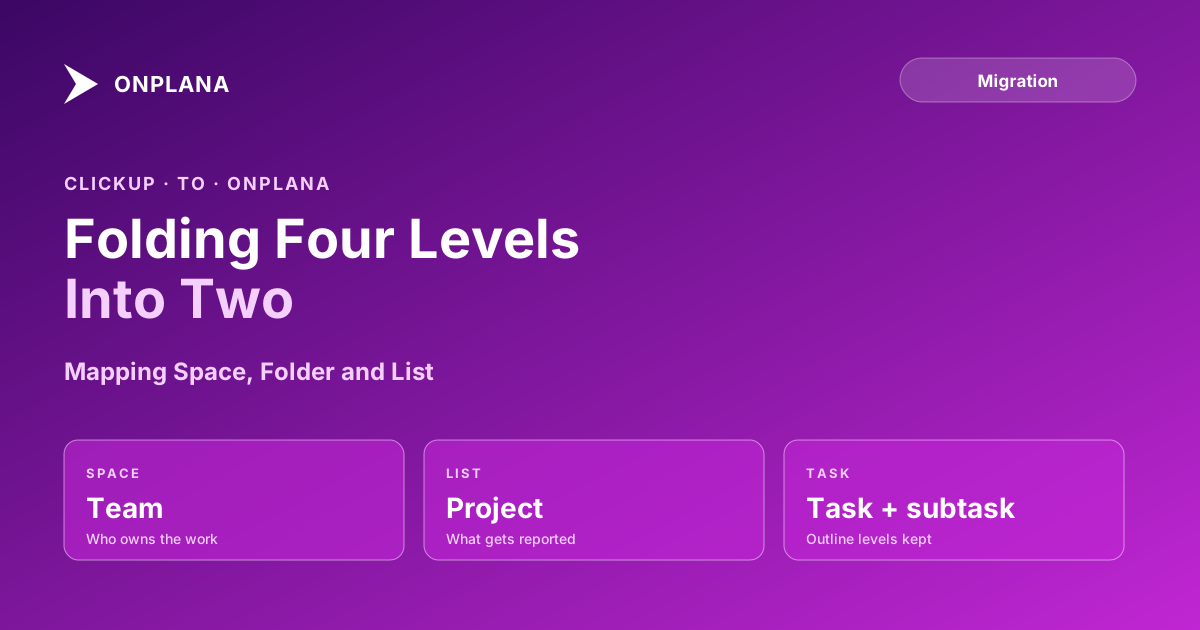
Onplana has projects, tasks and subtasks, so three ClickUp levels have to fold into two. There are three patterns, chosen by team shape.
| Pattern | Space | Folder | List | Fits |
|---|---|---|---|---|
| One list, one project | Team | Prefix in project name | Project | Teams whose Lists are real deliverables |
| One folder, one project | Team | Project | Phase or parent task | Programs with a few Lists per initiative |
| One space, one project | Project | Phase | Parent task | Small teams that used one Space for everything |
Choose by asking what a status report is written about. If the report covers a List, make the List a project. If it covers a Folder, make the Folder a project and turn Lists into phases, which Onplana holds as parent tasks.
The diagram below shows the first pattern and where the levels fold.
How do you export ClickUp data?
Export a List or Table view as CSV or Excel for a single List, or open Imports / Exports in Workspace settings and export task data from chosen Spaces, Folders or Lists as CSV. ClickUp's help documentation says the workspace export carries ID, name, description, status, dates, assignees, priority and comments, and that subtasks are included only when you ask for them.
- Decide the mapping pattern and write it down.
- Export each List with subtasks as separate tasks.
- Delete columns you will not carry over, and keep status, dates, assignee and description.
- Add outline levels so subtasks sit under their parent, because Onplana's spreadsheet import keeps hierarchy.
- Import the file from the migration page into a new project and check the Kanban columns.
What happens to custom statuses and fields?
Statuses become Kanban columns, so cut them. ClickUp teams often carry a dozen statuses per List; a project that survives the move usually needs four to six. Custom fields are a plan question: Onplana's custom fields start on Pro, while the Kanban board, Gantt and dependencies are on every plan. Check pricing against the fields you use before you commit.
What do you gain, and what do you give up?
You gain a schedule. ClickUp supports Finish-to-Start dependencies; Onplana supports all four types with lag, a calculated critical path and baselines on every plan, which the Onplana vs ClickUp comparison sets out. You give up some breadth: ClickUp ships more views and native docs and chat in one app. Teams that use that breadth should say so before moving, and switching project management tools covers the retraining and parallel-run cost the import does not.
Test the mapping on one List first Export the List with the most dependent work, import it into a Free project, and check the board. If the structure holds, move the rest. → See how migration works
Frequently asked questions
Can I import ClickUp tasks directly into Onplana?
Not through a ClickUp-specific importer. Onplana's import wizard reads .mpp, Project XML, .xer, and Excel or CSV work breakdown structures, so ClickUp tasks go in through the CSV or Excel export.
How do I export my data from ClickUp?
Export a List or Table view as CSV or Excel, or use Imports / Exports in Workspace settings to export task data from chosen Spaces, Folders or Lists as CSV. The workspace export includes comments; choose the subtask option so subtasks come out too.
How does ClickUp's Space, Folder, List hierarchy map to Onplana?
Onplana has projects and tasks with subtasks, so the three ClickUp levels collapse. Usually a List becomes a project, a Folder becomes a naming prefix or a portfolio grouping, and a Space becomes a team.
What happens to ClickUp custom statuses and custom fields?
Statuses map to the Kanban columns of the new project, so cut them to the ones people actually use. Custom fields need a matching field on the Onplana side, and custom fields start on the Pro plan, so check the plan before you plan the mapping.
Does Onplana have the dependencies ClickUp has?
It has more types. ClickUp supports Finish-to-Start; Onplana supports all four types with lag on every plan, including Free.
Where is ClickUp better than Onplana?
ClickUp has more views and native docs and chat in one app. Teams that use that breadth will give something up, so decide that before you move.
Ready to make the switch?
Start your free Onplana account and import your existing projects in minutes.