Open an MPP File on Android or iPhone, Free, No MS Project
To open an MPP file on Android or iPhone, use Onplana Schedule, a free app. Steps for both phones, what you can edit, and what happens to your file.
An .mpp attachment lands in your inbox while you are on a site visit, and the phone offers nothing to open it with. The fix is a free app: Onplana Schedule opens Microsoft Project .mpp files on Android and on iPhone, with no Microsoft Project licence and no account. As of November 20, 2026, its phone page lists Android 7.0 or later on Google Play and iOS 17.4 or later on the App Store.
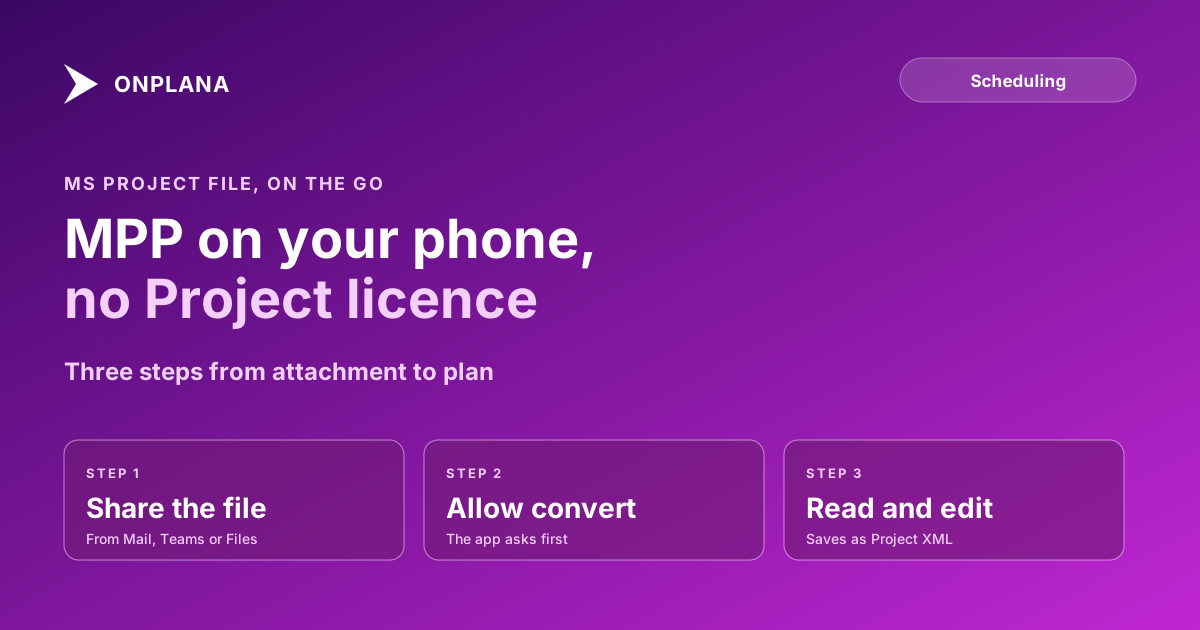
The short version: Install Onplana Schedule from Google Play or the App Store, tap Open a file (or share the attachment to the app), and say yes when it asks to convert the .mpp. You get the plan as a list or a timeline with the critical path in red. Edits save as Project XML beside the original.
Get Onplana Schedule for your phone Free on Google Play and the App Store. Opens .mpp, .mpt, .mpx, .xer and Project XML, with nothing to buy in the app. Get Onplana Schedule for your phone
How do you open an MPP file on Android?
Open it from your phone's storage or share it from the app that received it. The steps are the same on both platforms, with one difference in where the file comes from:
- Install Onplana Schedule from Google Play (Android 7.0 or later).
- Tap Open a file and pick the .mpp from storage, or share the attachment from Mail, Teams or Files to Onplana Schedule.
- Allow the conversion. The app names the file and asks before it sends a copy to be converted.
- Read the plan, switch between the list and the timeline, and tap Critical tasks only to see the chain that sets the finish date.
How do you open an MPP file on iPhone or iPad?
On an iPhone the route is Files or the share sheet. Install the app from the App Store (iOS 17.4 or later), then either tap Open a file and choose the .mpp in Files, or share the attachment from Mail or Teams to Onplana Schedule. A file sent from another app opens as a copy, so Save asks where to keep your edited plan and the attachment stays as it was. The same app runs on iPad, and a tablet screen shows the grid beside the Gantt chart.
The diagram below shows the path a file takes, and where it stays on the phone.
What can you do with the plan on a phone?
You can read it, make small edits, update it on site and send it on. The phone view covers four jobs:
| Job | What the app offers |
|---|---|
| Read | A task list or a timeline, with links, milestones and the critical path in red; search, or narrow to critical tasks only |
| Edit | Change name, start, finish, duration, percent complete and predecessors, or drag a bar; linked tasks reschedule and Undo takes the change back |
| Update on site | Show this week or the next two weeks, and swipe a task to mark it done |
| Share | Send the plan as Project XML, the task table as CSV, or the chart as a PDF or picture |
The first-hand test is simple: open a plan you know, switch on Critical tasks only, and check that the chain matches the one you expect.
What happens to your file when you open it?
The file's contents decide where it is read, not its extension. If the contents are Microsoft Project XML, the file opens on your phone and nothing is uploaded unless you run a health check or publish a copy. Everything else, an .mpp included, is converted on Onplana's servers, and the uploaded copy is deleted within 3 days and removed from backups 7 days after that. The app asks before it converts or checks a file.
When should you use a computer instead?
Use a computer for large plans, resource views and long editing sessions. On a laptop you can open the same file in the browser with the online MPP viewer, which is read-only, or in the desktop app for edits; how to open an MPP file without Microsoft Project lays out all three routes, and the best Microsoft Project viewers compares what each one can and cannot do. What an MPP file is explains why the format needs converting in the first place. If the plan is moving into a team workspace, importing an MS Project schedule while keeping its dependencies covers the checks.
The desktop and phone apps share one hub at Onplana Schedule. Keep two limits in mind: there is no browser editor, and nothing writes .mpp, so a plan going back to a Microsoft Project user travels as Project XML.
Get Onplana Schedule for your phone Open the next .mpp that arrives in your inbox on the phone in your pocket. Free, and nothing to buy in the app. Get Onplana Schedule for your phone
Microsoft Project™ is a trademark of Microsoft Corporation. Onplana is not affiliated with Microsoft.
Frequently asked questions
Can I open an MPP file on an Android phone?
Yes. Install Onplana Schedule from Google Play (Android 7.0 or later), then open the .mpp from your phone's storage or share it from Mail or Teams. It is free and needs no Microsoft Project licence.
Can I open an MPP file on an iPhone or iPad?
Yes. Onplana Schedule is on the App Store for iPhone and iPad (iOS 17.4 or later). Open the file from Files, or share it from Mail or Teams to the app.
Is my MPP file uploaded when I open it on my phone?
Yes, an .mpp is converted on Onplana's servers, and the app asks before it sends a copy. The uploaded copy is deleted within 3 days and removed from backups 7 days after that. A Microsoft Project XML file is different: it opens on the phone and is uploaded only if you run a health check or publish a copy.
Can I edit the schedule on my phone and send it back?
Yes, with a limit. You can change names, dates, durations, percent complete and predecessors, but a file opened as .mpp saves as Project XML in a new file, never over the original. The app does not write .mpp.
Will the phone view show the critical path?
Yes. The timeline draws the critical path in red, and you can narrow the list to critical tasks only.
When is a desktop the better choice?
When the plan is large or you are doing heavy rework. A phone is good for reading, a quick edit and a status update on site; resource views and long editing sessions are easier on a tablet or a computer.
Ready to make the switch?
Start your free Onplana account and import your existing projects in minutes.