Connect Claude to Your Project Management Tool
Connect Claude to your project management tool over MCP: read and update tasks, sprints, and risks from chat, scoped to what you can already see.
Connecting Claude to a project management tool is a settings-panel task now, not an engineering project: generate a token or run one OAuth flow, and Claude can read your actual tasks, sprints, and risks, then draft updates from inside the conversation instead of you copying data back and forth by hand.
The direct answer: connect Claude to your project management tool over the Model Context Protocol (MCP), the open standard Anthropic released for exactly this. For Claude Desktop or Claude.ai, paste a personal access token or run through an OAuth connector; for Claude Code, one CLI command does it and opens a browser to authorize. What Claude can do after that is bounded by two things that matter more than the setup steps: the connecting user's own permissions, so it never sees more than that person could see in the app, and the vendor's tool catalog, since a delete action Claude can't call is a mistake it can't make.
TL;DR: Connecting Claude to Onplana
- Setup: a personal access token or OAuth for Claude Desktop/Claude.ai, or one command for Claude Code.
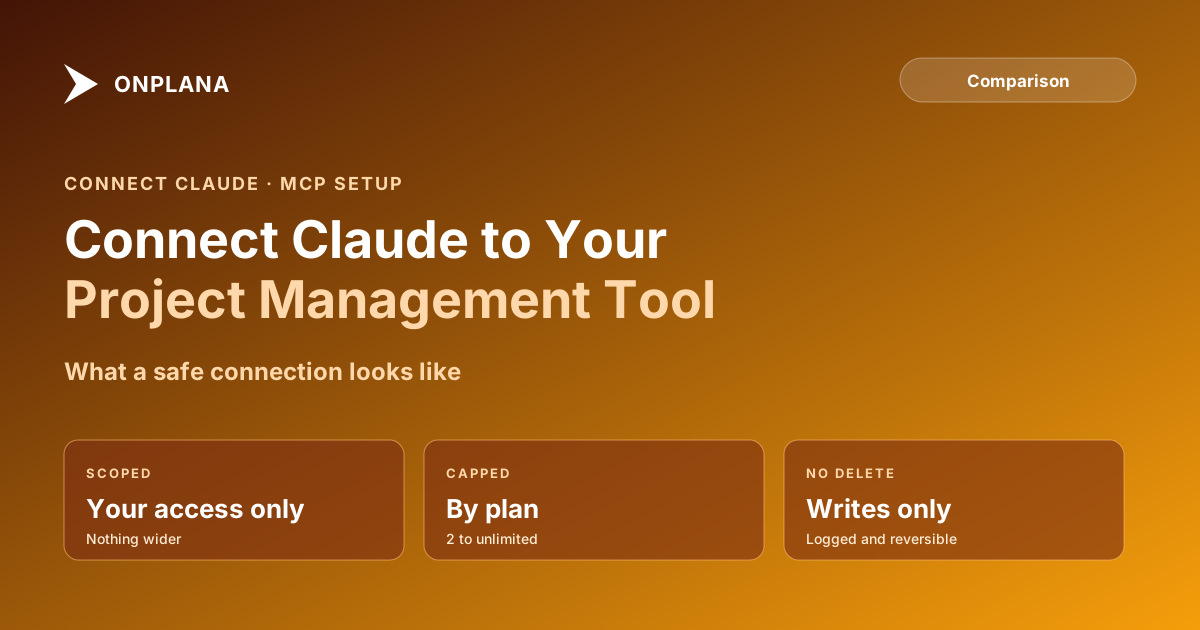
- Scope: Claude sees what the authorizing user can see, nothing more.
- Connection limits: capped by plan, from 2 concurrent connections on Free up to unlimited on Enterprise Plus.
- Deletion is opt-in: destructive tools are denied by default and enabled per operation by an admin; the ones that can be enabled are recoverable from the recycle bin.
How to Connect Claude to Your Project Management Tool
The setup differs slightly by which Claude client you're using, but the shape is the same everywhere: authorize once, then Claude has a standing connection until you revoke it.
- Generate a credential. In Onplana, go to Integrations → AI agents and generate a connection token (Bearer personal access token,
MCP_AGENTscope) or use the OAuth 2.1 flow if your client supports Custom Connectors. - Add the server to your Claude client. In Claude Desktop, that's a
mcpServersentry inclaude_desktop_config.jsonpointing athttps://mcp.onplana.com/mcpwith the token as a Bearer header. In Claude Code, it's one line:claude mcp add onplana --transport http https://mcp.onplana.com/mcp, which triggers OAuth in a browser on the first tool call instead of asking you to paste anything. - Restart and verify. Restart the client, then ask it something concrete: "list my projects" or "what's overdue on the Q3 rollout." If the answer matches what you'd see in the app, the connection is live.
The full walkthrough with exact file paths for macOS and Windows is at how to connect Onplana to Claude Desktop; the MCP server overview covers the same setup for other clients (Cursor, ChatGPT, Gemini) if Claude isn't the only assistant your team runs.
What Claude Can Actually Do Once It's Connected
The setup steps are the easy part. What determines whether the connection is safe to leave running is the scope of what's on the other end of it.
| What it means | |
|---|---|
| Reads | List and search projects, tasks, sprints, risks, comments, and wiki content, the same records the authorizing user can already open in the app |
| Writes | Create and update tasks, comments, and status fields; the specific write tools available depend on the connecting user's role and plan |
| Never exposed | Delete actions. There are no delete_* tools in Onplana's MCP catalog; the furthest a write goes is a reversible status change, logged the same as a human edit |
| Bounded by | The authorizing user's own permissions, not a separate, broader "agent" identity; Claude cannot see a project that user couldn't open |
That last row is the one worth checking with any vendor, not just Onplana. The security questions worth asking an AI agent vendor covers the same scoping question from the buyer's side: an integration that grants a connected assistant org-wide access by default, rather than the connecting user's own scope, turns one leaked token into an incident that touches everything instead of one project.
The diagram below shows the three properties that should hold true of any Claude connection you approve, regardless of vendor.
Why the Connection Limit Matters More Than It Looks
A plan-based cap on concurrent connections reads like a minor commercial detail until a token leaks or a trial account gets shared more widely than intended. A hard ceiling, set by an admin and enforced server-side, is what keeps that scenario contained to a small, known number of live connections instead of an unbounded one nobody's tracking. Onplana's caps run from 2 concurrent connections on Free up to 10 on Enterprise and unlimited on Enterprise Plus, and mutating actions carry a separate monthly cap on Free specifically, unlimited from Pro up, so a runaway script or an over-eager automation hits a wall before it becomes an incident rather than after.
That's a different constraint from what a lot of teams expect to be the limiting factor, which is usage cost. The cap here is about blast radius, not billing: how many live connections can exist and how many writes one can make in a month, independent of how much any individual conversation with Claude costs to run.
Claude Isn't the Only Client, But It's Usually the First
Most teams that connect an AI assistant to their project data start with whichever one they already use daily, and for a large share of PM buyers that's Claude. The setup pattern here, a scoped credential, a standard protocol, a capped connection, is the same one that should apply to ChatGPT, Cursor, and Gemini if your team runs more than one assistant, and the underlying protocol is the same across all of them: what MCP actually changes for a PM tool covers the mechanics in more depth if you're evaluating the standard itself rather than just wiring up Claude.
Connect Claude to Onplana in about 5 minutes Generate a scoped token, paste it into Claude Desktop's config (or run one command in Claude Code), and Claude can read and update your real projects from the conversation. → Read the full connect guide
More on how Onplana handles agent access, scope, and audit logging lives on the Onplana blog alongside this one.
Frequently asked questions
How do I connect Claude to my project management data?
Two ways. Claude Desktop or Claude.ai: generate a personal access token in your PM tool's integrations settings, or use the OAuth connector flow if the vendor offers one. Claude Code (the CLI): a single command adds a remote MCP server and triggers OAuth in a browser on first use. Either way, no code to write.
Can Claude see projects or tasks I don't have access to?
No, not if the server is built correctly. A connection should carry the same permissions as the person who authorized it, project by project, so Claude sees exactly what that user could see in the web app and nothing an org-wide credential would expose instead.
How many AI clients can I connect at once?
Depends on the vendor's plan tiers. Onplana caps concurrent MCP connections by plan (2 on Free, 3 on Pro, 5 on Business, 10 on Enterprise, unlimited on Enterprise Plus), scoped per personal access token or OAuth grant, not a single shared slot for the whole org.
Can Claude delete projects or tasks through the connection?
Only if an admin has enabled it, and only recoverably. Onplana denies destructive tools by default per workspace, so a fresh connection cannot delete anything; an admin turns on each operation individually, and the caller still needs the underlying permission. The four that can be enabled all soft-delete to the recycle bin, and a deleted task or project restores with its whole subtree under the original ids.
Ready to make the switch?
Start your free Onplana account and import your existing projects in minutes.