Import Microsoft Project Into P6: MPP to Primavera Steps
Import Microsoft Project into P6 by saving the plan as Project XML first, then running P6's import. The steps, what breaks on the way, and what gets uploaded.
The owner asked for the schedule in Primavera P6 and you built it in Microsoft Project. To import Microsoft Project into P6, save the plan as Microsoft Project XML, then run P6's import on that XML. P6 will not take a binary .mpp, so the XML step is the whole job, and the checks after the import are what keep the finish date honest.
The short answer. Get the plan into Project XML (Microsoft Project's Save As, or open the .mpp in Onplana Schedule and save it as XML), import the XML in P6, then compare finish date, critical path, calendars and constraints with the original. Oracle warns that some information may be lost, because the two tools use different data structures (Oracle P6 data map guide).
Turn the .mpp into Project XML with Onplana Schedule The free desktop app for Windows and Mac opens an .mpp without a Microsoft Project licence and saves Project XML beside the original, ready for P6's import. → Get Onplana Schedule
How do you import Microsoft Project into P6?
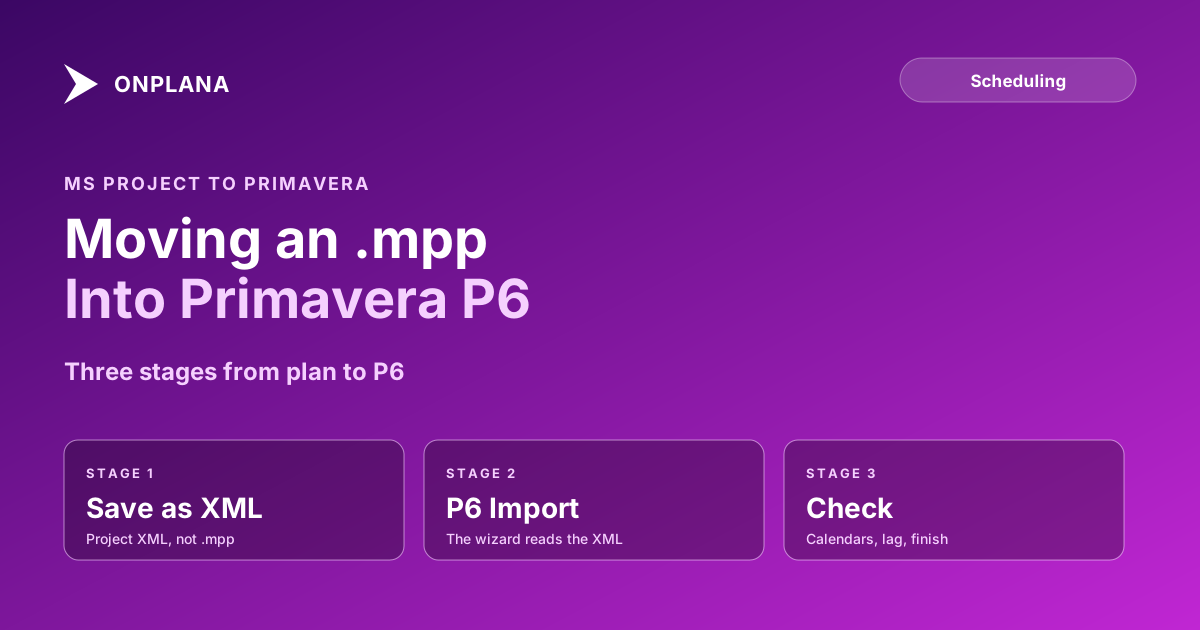
There are three stages, and the diagram below shows where each one runs. The middle check is the one people skip.
- Save the plan as Project XML. In Microsoft Project, use File > Save As and pick the XML format. With only an .mpp and no licence, open it in Onplana Schedule and save; the app writes Project XML in a new file beside the original and never overwrites it. It does not write .mpp, and it does not need to for this route.
- Import the XML in P6. In P6 Professional, choose File > Import and select the Microsoft Project option, then work through the wizard. Onplana's own Schedule page notes P6 Professional can import this XML for an admin superuser. Check your P6 version's import guide, because wizard screens differ between releases.
- Check the result before anyone relies on it. The next section lists what to compare.
Going the other way, an .xer from P6 into Microsoft Project, is covered in converting an XER file to Microsoft Project. What the XML contains is unpacked in MSPDI XML explained.
What breaks when you import Microsoft Project into P6?
Calendars, constraints and the units behind lag. Oracle documents that Microsoft Project working time calendars come into P6 as project-level calendars and resource calendars as resource-level calendars, and that P6 calculates units and costs slightly differently, so values may not match.
| Area | What to check after import |
|---|---|
| Calendars | Task and resource calendars landed where you expect; the finish date uses the same working days |
| Constraints | Each Must Start On, Must Finish On or deadline is still present and still means the same in P6 |
| Lag and duration | Lag on the critical path keeps its length; elapsed or percentage lag does not silently become working days |
| Links | The count and type (FS, SS, FF, SF) match; spot-check the five on the critical path |
| Costs and units | Totals agree with the source within the tolerance you set, since P6 calculates them differently |
| Baseline | Assume none came across; set the P6 baseline after you accept the schedule |
Run the same file through the free Schedule Health Check first. Dangling tasks and constraint conflicts that exist in Microsoft Project arrive in P6 unchanged, and it is cheaper to fix them in the source. Importing an MS Project schedule without losing dependencies covers the link checks in more depth, and Microsoft Project vs Primavera P6 explains why the two tools can disagree on a finish date for the same logic.
Is the file uploaded when you prepare it in Onplana Schedule?
It depends on what is in the file, not what it is called. A file whose contents are Microsoft Project XML is read on your machine and nothing is uploaded. Everything else, a binary .mpp and a Primavera P6 or Planner XML export alike, is converted on Onplana's servers, and the uploaded copy is deleted within 3 days and removed from backups 7 days after that. An .mpp is in the second group, so it is uploaded for conversion; the app tells you before anything leaves your computer.
Once you have the XML, reopening it in the app is local. You can also keep the plan on the machine entirely by turning on the privacy setting that greys out every command that would upload.
Can Onplana Schedule write the .xer for you?
On Professional and above it can: File > Save as Primavera .xer writes the plan as a P6 .xer and lists what the file will not carry first. That includes baselines and expenses. It is a different route from the Project XML import above, so test the one your P6 owner prefers on a small project before committing a large one. Onplana Schedule does not write .mpp.
If P6 itself is the question, Primavera P6 alternatives compared ranks four schedulers on file fidelity.
Turn the .mpp into Project XML with Onplana Schedule Open the file, run the health check, and save the Project XML P6 imports. Free on Windows and Mac. → Get Onplana Schedule
Microsoft Project™ is a trademark of Microsoft Corporation. Primavera P6 is a trademark of Oracle. Onplana is not affiliated with Microsoft or Oracle.
Frequently asked questions
How do I import a Microsoft Project file into Primavera P6?
Save the plan as Microsoft Project XML, then import that XML into P6 with its Import wizard. P6 does not read a binary .mpp directly, so an .mpp has to become XML first.
Can Onplana Schedule write an .xer for P6?
Yes, on Professional and above: File > Save as Primavera .xer writes the plan as a P6 .xer and says first what the file will not carry. On every plan, Onplana Schedule also saves Project XML, which P6 Professional can import.
Does an .mpp I open in Onplana Schedule get uploaded?
Yes. A binary .mpp is converted on Onplana's servers, and the uploaded copy is deleted within 3 days and removed from backups 7 days after that. A file whose contents are Microsoft Project XML is read on your machine and nothing is uploaded.
What breaks when Microsoft Project data goes into P6?
Calendars, constraints and the units behind lag and durations are the usual casualties. Oracle's own data map warns that the two products use different data structures, so some information may be lost.
Will my baselines survive the move into P6?
Do not count on it. Treat the imported schedule as a fresh plan, compare its finish date and critical path with the original, and set the P6 baseline once you accept the numbers.
Do I need a Microsoft Project licence to prepare the file?
No, if you hold an .mpp. Onplana Schedule is free for Windows and Mac, opens the .mpp and saves it as Project XML, though it never writes an .mpp itself.
Ready to make the switch?
Start your free Onplana account and import your existing projects in minutes.