Convert an XER File to Microsoft Project, Step by Step
Convert an XER file to Microsoft Project: open the .xer in Onplana Schedule, save it as Project XML, then save as .mpp. Includes the checks and what it uploads.
Someone sent you a Primavera P6 .xer and you work in Microsoft Project. To convert an XER file to Microsoft Project, open the .xer in Onplana Schedule, save it as Project XML, open that XML in Microsoft Project, then save it as .mpp. Four steps, no P6 licence, and a few checks in the middle so the finish date you quote is the one the sender meant.
The short version: an .xer is tab-delimited text, not XML or .mpp, so it has to be parsed, not renamed. Onplana Schedule opens it and saves Project XML; Microsoft Project, which can import and export XML (Microsoft: file formats supported by Project desktop), then saves the .mpp.
Download Onplana Schedule and open the .xer The free desktop app for Windows and Mac opens a Primavera .xer with its links, lag and critical path, and saves it as Project XML. → Get Onplana Schedule
How do you convert an XER file to MPP?
If you only need to read the file on a Mac, opening an XER file on a Mac is quicker than converting it.
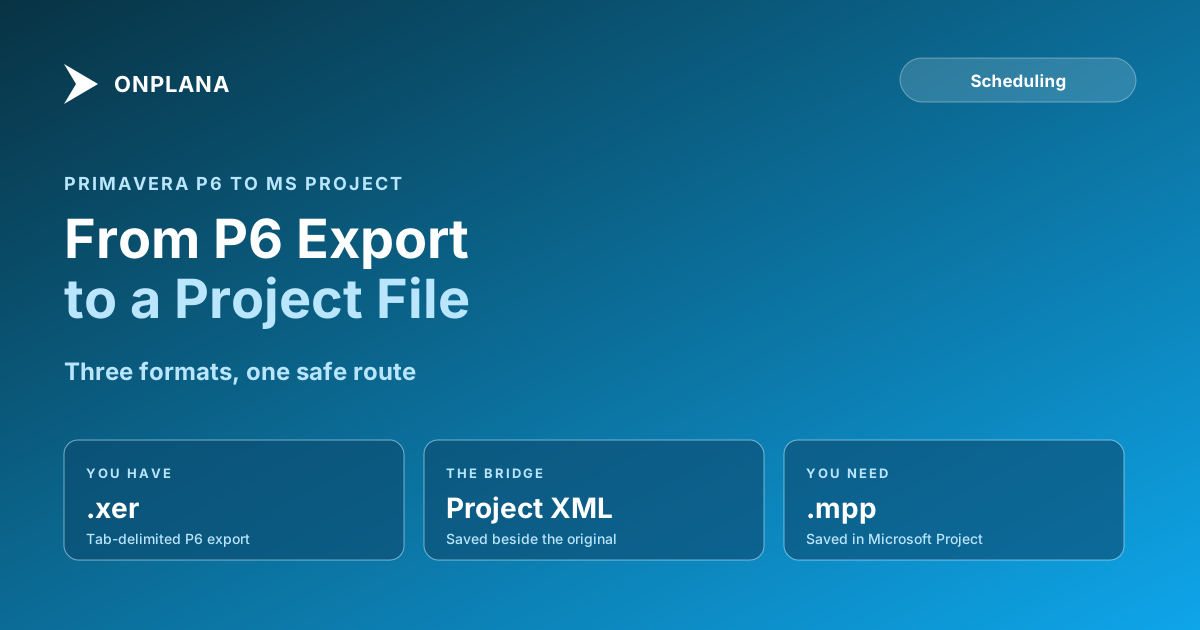
The diagram below shows the route. Only the first and last steps change the format; the middle two are where you catch problems.
- Open the .xer in Onplana Schedule. Double-click the file or drop it on the window. The app tells you before anything leaves your computer (the privacy split is below).
- Check the schedule. Compare the task count, the links on the critical path, the calendar and the finish date against what the sender gave you. The next section lists the checks.
- Save as Project XML. Save writes Project XML in a new file beside the original, so the .xer is never overwritten.
- Open the XML in Microsoft Project and save as .mpp. In Microsoft Project use File > Open to pick the XML, then File > Save As and choose the .mpp format. Onplana does not write .mpp itself, so this last step is Microsoft's.
If you only need to look at the schedule, not convert it, the free XER viewer shows the Gantt, task table and critical path in the browser without Primavera. What the format holds is covered in XER file explained.
What should you check after converting?
A converted file can look right and be wrong. Check four things, in this order:
- Task count and IDs. Match the total against the sender's and spot-check ten activities.
- Links and lag. Pick the five links on the critical path and confirm type and lag; dependency types explained shows why a mislabelled link moves a finish.
- Calendars. When the working calendar differs from the default it comes across into a new project; resource calendars and repeating holidays do not. Reconcile the finish date against the sender's.
- Anything P6-specific. Activity codes, resource curves and expenses are P6 concepts with no obvious Microsoft Project twin. Look for them in your own file before assuming they survived.
A P6 .xer carries no baseline, so there is none to convert; set a new one in Microsoft Project after you open the file. For how the two schedulers differ in what moves dates, see Microsoft Project vs Primavera P6. If the owner wants the plan going the other way, here is how to import Microsoft Project into P6.
Is the file uploaded during conversion?
It depends on what is in the file, not what it is called. A Microsoft Project XML file is read on your machine and nothing is uploaded. Everything else, a Primavera .xer and a P6 or Planner XML export alike, is converted on Onplana's servers, and the uploaded copy is deleted within 3 days and removed from backups 7 days after that. An .xer is in the second group, so it is uploaded for conversion.
Once your edited schedule is saved as Project XML, that XML is read on your machine when you reopen it. The same format is what MSPDI XML explained unpacks, including why lag looks odd in the raw file.
Why not use an online XER to XML converter?
A generic converter flattens the tables into a task list, and the logic goes first: relationship lag, calendars and activity IDs. The result opens, but the critical path no longer matches the contractor's. Converting in a tool that reads the schedule model and recalculates it, then checking,. The same applies in reverse for opening a .mpp without Microsoft Project.
Download Onplana Schedule and open the .xer Open the file, check the links and save the Project XML Microsoft Project reads. Free on Windows and Mac. → Get Onplana Schedule
Microsoft Project™ is a trademark of Microsoft Corporation. Primavera P6 is a trademark of Oracle. Onplana is not affiliated with Microsoft or Oracle.
Frequently asked questions
How do I convert an XER file to Microsoft Project?
Open the .xer in Onplana Schedule, save it as Project XML, then open that XML in Microsoft Project and save it as .mpp. Renaming the file does not work, because the .xer is tab-delimited text, not XML.
Can I convert XER to MPP in one step?
Not with Onplana. Onplana Schedule saves Project XML and does not write the .mpp format, so the last step, File > Save As .mpp, is done in Microsoft Project.
Is my XER file uploaded when I convert it?
Yes. A .xer is converted on Onplana's servers, and the uploaded copy is deleted within 3 days and removed from backups 7 days after that. Only Microsoft Project XML is read on your machine without an upload.
What can go missing when a P6 schedule becomes a Project file?
Expect the task logic to come across and the calendars to need a check. A working calendar that differs from the default comes across into a new project, but resource calendars and repeating holidays do not. Verify anything specific to P6 in your own file.
Does the converted file keep my baseline?
A P6 .xer carries no baseline, so there is none to convert. Set a new baseline in Microsoft Project once the schedule is open.
Do I need Primavera P6 installed to convert the file?
No. Onplana Schedule is a free desktop app for Windows and Mac that opens a .xer without P6, and you do not need Microsoft Project to open the file, only to save the final .mpp.
Ready to make the switch?
Start your free Onplana account and import your existing projects in minutes.